
Print photos in a picture package layout, Place multiple photos into a picture package – Adobe Photoshop CC 2014 v.14.xx User Manual
Page 867
Print photos in a picture package layout
Place multiple photos into a picture package
Customize a picture package layout
Flexible picture packages with Smart Objects
Place multiple photos into a picture package
To use the optional Picture Package plug-in described below, first download it for
or
You can also create picture and
custom packages in Photoshop Lightroom, if you have it. See
in Lightroom Help.
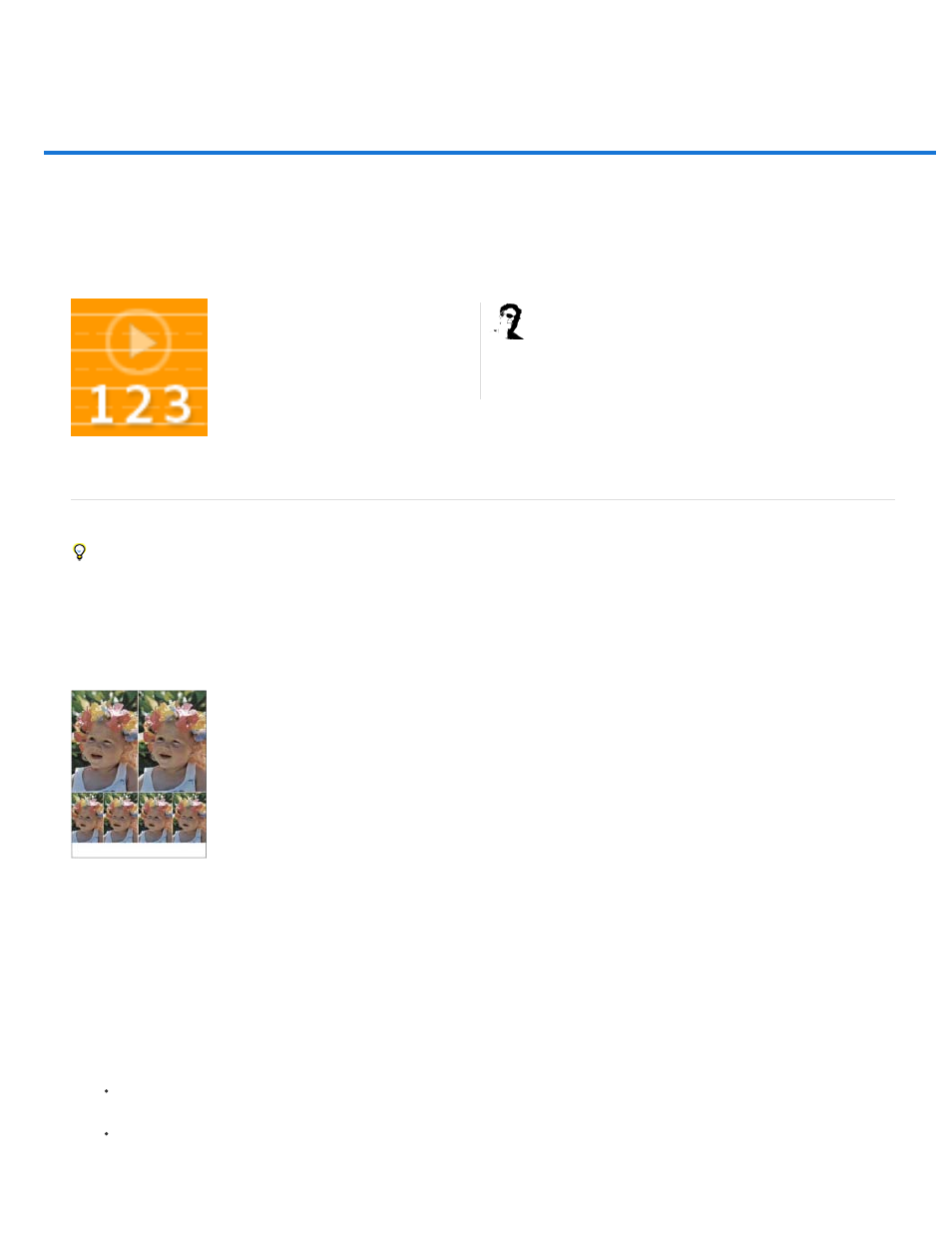
With the optional Picture Package plug-in, you can place multiple copies of an image on a single page, much as portrait studios do with school
photos. You can also place different images on the same page. You can choose from a variety of size and placement options to customize your
package layout.
A picture package layout
1. Picture Package is an optional plug-in. Download and install it for
or
.
2. Run Photoshop in 32-bit mode (64-bit Mac OS only).
3. Do one of the following:
(Photoshop) Choose File > Automate > Picture Package. If you have multiple images open, Picture Package uses the frontmost
image.
(Bridge) Choose Tools > Photoshop > Picture Package. The Picture Package command uses the first image listed in Bridge unless
you select a specific image before giving the Picture Package command.
Lay out a custom package template in
Photoshop CS5....
by
860