
Touch Page 104
Page 104
102
Using the Registration Buttons
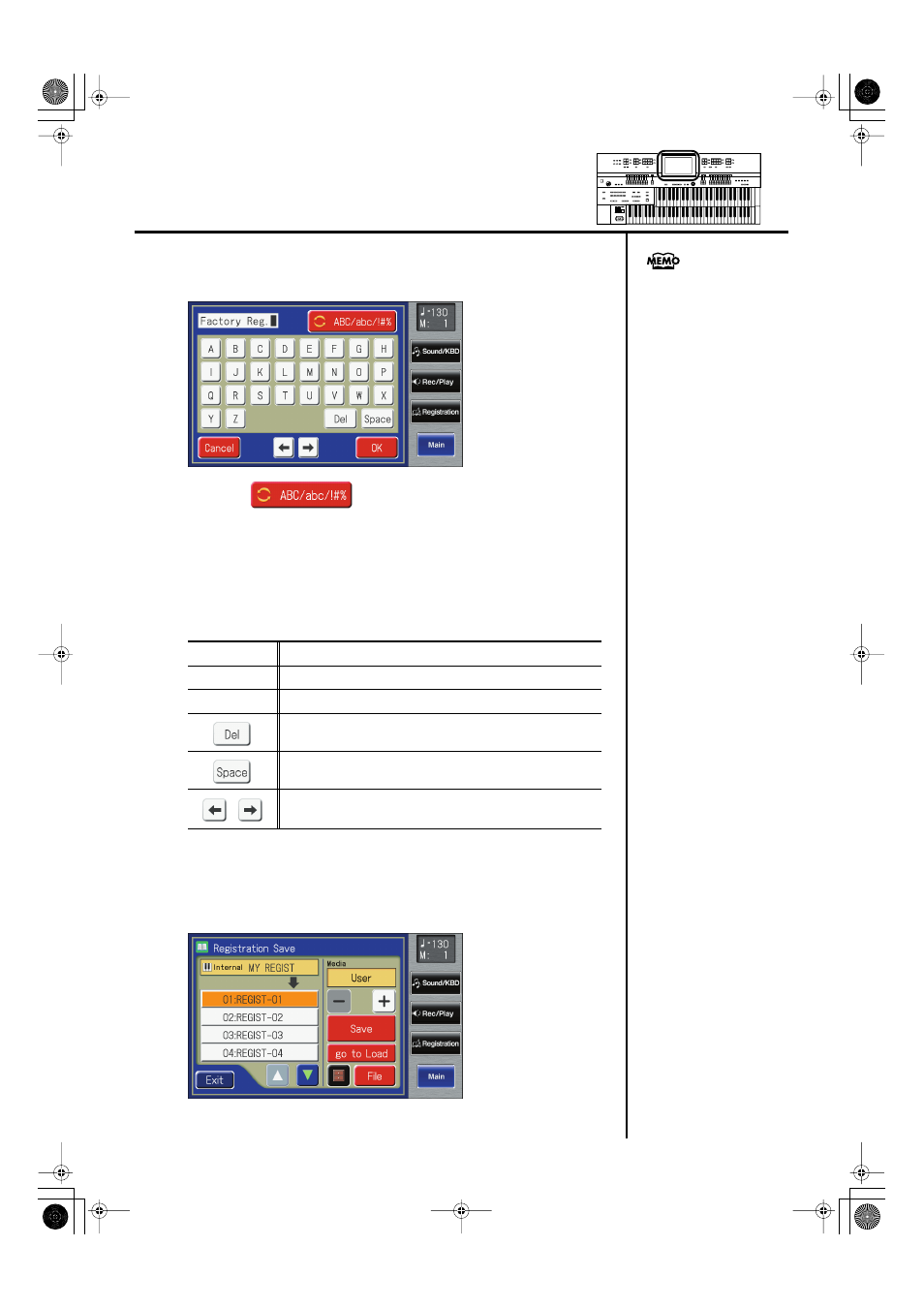
4.
Touch
The Rename screen appears.
fig.03-11-2.eps
5.
Touch <
> to change among uppercase/
lowercase/symbols.
Each touch of the character switch button takes you to the next available
choice, like this: uppercase
→
lowercase
→
symbols
→
uppercase ....
6.
Touch the screen to specify the desired character.
The following characters can be selected.
To cancel the operation, touch
7.
When you’re done making the settings, touch
The Registration set in the ATELIER’s internal memory has now been named.
fig.03-12.eps
Uppercase
A B C D E F G H I J K L M N O P Q R S T U V W X Y Z
Lowercase
a b c d e f g h i j k l m n o p q r s t u v w x y z
Symbols
! " # % & ' ( ) * + , - . / : = ? ^ _ 0 1 2 3 4 5 6 7 8 9
Delete a character.
Insert a space.
Move the cursor (the symbol that indicates the location at which
characters will be input) to left or right.
The Rename screen can also be
opened in the following ways.
Main screen
→
Registration Load screen
→
Utility screen
AT-500_e.book 102 ページ 2008年7月28日 月曜日 午後4時17分