
Epson DFX-9000 User Manual
Page 19
Paper Handling
19
2
2
2
2
2
2
2
2
2
2
2
2
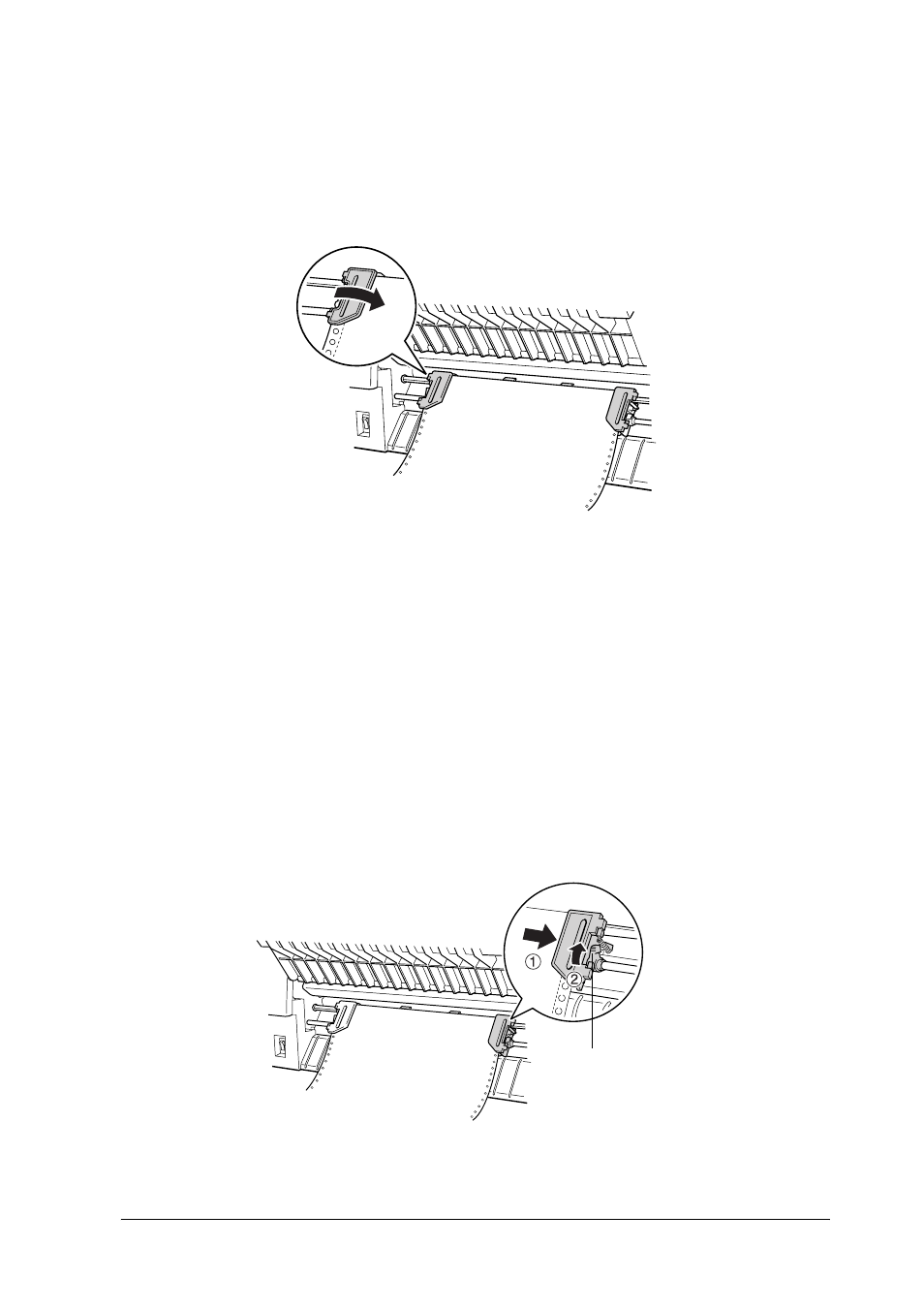
8. Be sure your paper has a clean, straight edge, and then fit the
first few holes in the paper over the sprocket pins as shown
below. The side of the paper that you want to print on should
be facing you. Now close the sprocket covers.
Note:
When loading paper from the front, be sure to put the paper
someplace that is lower than the stand where the printer is placed.
Placing the paper on the same level as the printer or higher may
cause a paper jam.
9. Slide the right sprocket so that the paper is straight and has
no wrinkles. Lock the sprocket in place by pushing up the
sprocket lock lever. After you lock the right sprocket, it may
still move slightly; this is normal.
sprocket lock lever
See also other documents in the category Epson Printers:
- Stylus Pro 7800 (11 pages)
- Stylus Pro 4000 (49 pages)
- Stylus Photo R300 (2 pages)
- Stylus Pro 7000 (147 pages)
- AcuLaser C3000 (316 pages)
- Stylus Pro 7900 (24 pages)
- Stylus Pro 4450 (21 pages)
- 1000 (272 pages)
- T034120 (4 pages)
- T580300 (4 pages)
- 300 (91 pages)
- B 510DN (190 pages)
- B 510DN (218 pages)
- Stylus NX510 (8 pages)
- Stylus Photo RX580 (95 pages)
- T549300 (4 pages)
- AculaserCX11NF (5 pages)
- B 500DN (168 pages)
- 480SXU (24 pages)
- 4500 (317 pages)
- STYLUS RX500 (99 pages)
- 2100 (13 pages)
- Stylus NX215 (2 pages)
- T098320 (4 pages)
- T041020 (4 pages)
- R210 (8 pages)
- All-In-One Stylus Photo RX600 (164 pages)
- 777I (53 pages)
- T033120 (4 pages)
- Stylus CX7000F (8 pages)
- 60 (113 pages)
- T034220 (4 pages)
- WorkForce 40 Series (36 pages)
- T054220 (4 pages)
- Stylus CX3200 (11 pages)
- Stylus CX7800 (18 pages)
- T060220 (4 pages)
- 2500 (180 pages)
- AcuLaser CX11N (32 pages)
- AcuLaser CX11N (4 pages)
- 2000P (16 pages)
- T606600 (4 pages)
- Stylus CX6000 (18 pages)
- FS-4000DN (2 pages)
- MSDS T544700 (4 pages)