
Replacing an ink cartridge – Epson RX600 User Manual
Page 61
Replacing Ink Cartridges
61
Replacing an Ink Cartridge
Follow the steps below to replace ink cartridges.
Note:
Before replacing an ink cartridge, read “Precautions on Ink Cartridge
Replacement” on page 60 and “When handling ink cartridges” on page 10.
1.
When the ink is empty:
Refer to the LCD panel message to see which ink cartridge is empty,
and then press the OK button.
When the ink is low:
Press the Setup button and select Ink cartridge by pressing the
u
/d button, then press the OK button. Confirm the messages on the
LCD panel and press the OK button to start the ink cartridge
replacement.
The ink cartridges move to the replacement position.
2.
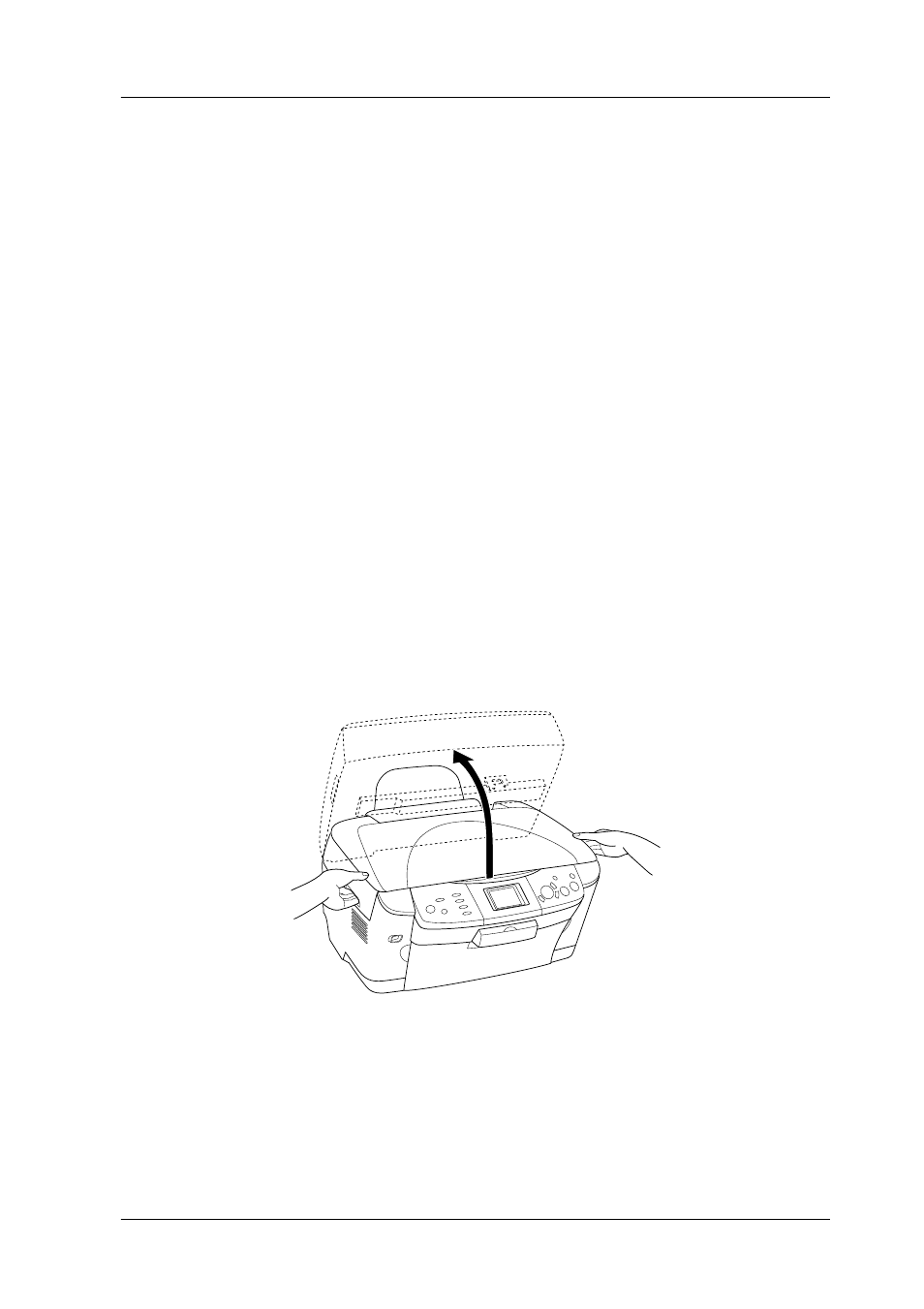
Make sure that the document cover is closed, and then open the
scanner unit.
See also other documents in the category Epson Printers:
- Stylus Pro 7800 (11 pages)
- Stylus Pro 4000 (49 pages)
- Stylus Photo R300 (2 pages)
- Stylus Pro 7000 (147 pages)
- AcuLaser C3000 (316 pages)
- Stylus Pro 7900 (24 pages)
- Stylus Pro 4450 (21 pages)
- 1000 (272 pages)
- T034120 (4 pages)
- T580300 (4 pages)
- 300 (91 pages)
- B 510DN (190 pages)
- B 510DN (218 pages)
- Stylus NX510 (8 pages)
- Stylus Photo RX580 (95 pages)
- T549300 (4 pages)
- B 500DN (168 pages)
- AculaserCX11NF (5 pages)
- 480SXU (24 pages)
- 4500 (317 pages)
- STYLUS RX500 (99 pages)
- 2100 (13 pages)
- Stylus NX215 (2 pages)
- T098320 (4 pages)
- T041020 (4 pages)
- R210 (8 pages)
- All-In-One Stylus Photo RX600 (164 pages)
- 777I (53 pages)
- T033120 (4 pages)
- Stylus CX7000F (8 pages)
- 60 (113 pages)
- T034220 (4 pages)
- WorkForce 40 Series (36 pages)
- T054220 (4 pages)
- Stylus CX3200 (11 pages)
- Stylus CX7800 (18 pages)
- T060220 (4 pages)
- 2500 (180 pages)
- AcuLaser CX11N (32 pages)
- AcuLaser CX11N (4 pages)
- 2000P (16 pages)
- T606600 (4 pages)
- Stylus CX6000 (18 pages)
- FS-4000DN (2 pages)
- MSDS T544700 (4 pages)