
Printing an index sheet, Printing photos by filling in the index sheet – Epson RX600 User Manual
Page 34
34
Printing Directly from a Memory Card
Printing an Index Sheet
1.
Press the Memory Card button.
2.
Select Index Sheet.
3.
Select Print Index by pressing the u/d button and then press the
x
Color button to start printing.
Printing photos by filling in the Index Sheet
1.
On the Index Sheet, use a dark pen to fill in the circles underneath
the photos that you want to print, and specify the paper type.
See the examples below.
Note:
Complete the Index Form correctly. You cannot change the settings using
the control panel.
2.
Load paper you have selected on the Index Sheet.
3.
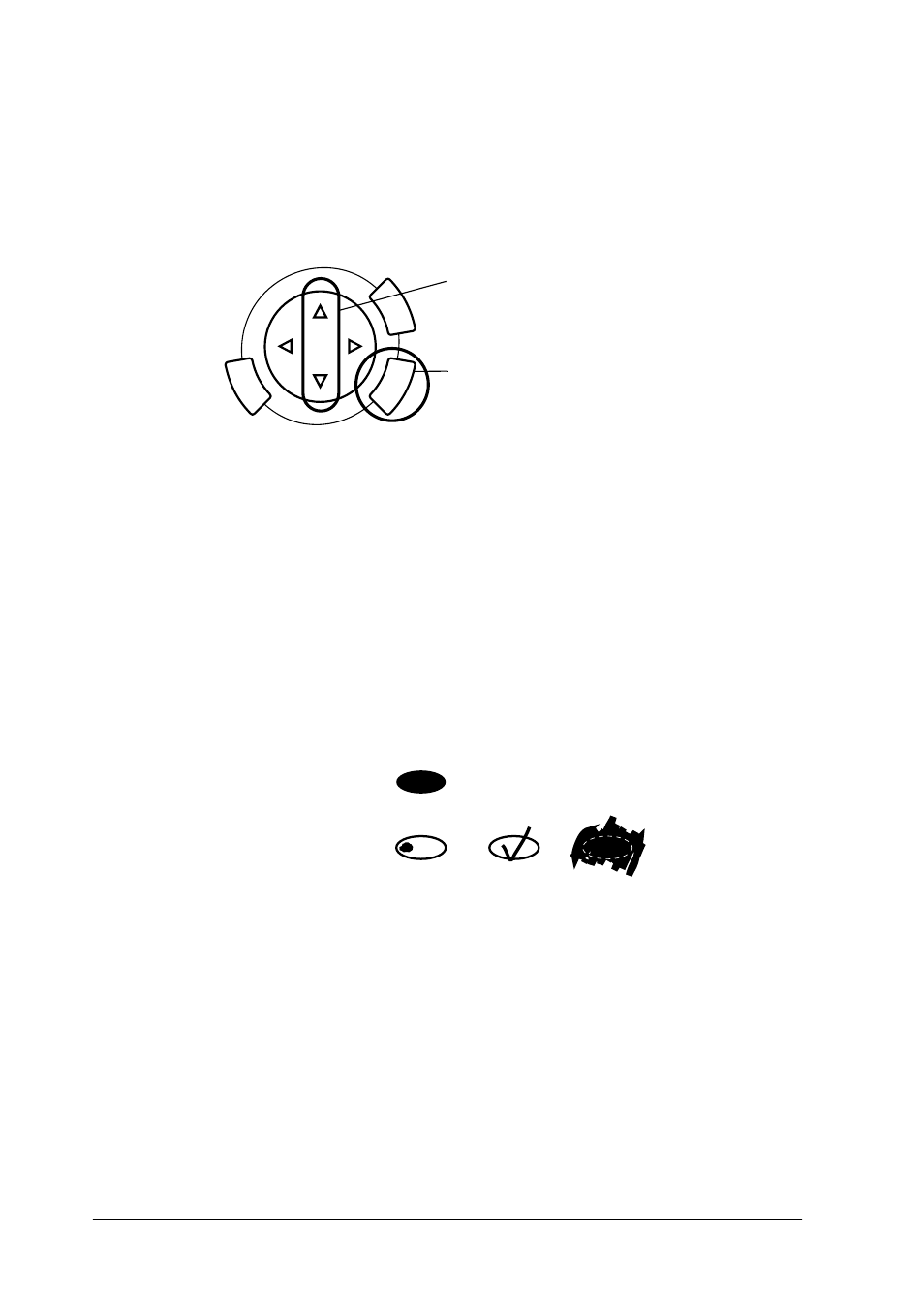
Select Scan Index by pressing the u/d button.
1. Select Index Sheet.
2. Press the OK button.
Not good
Good
See also other documents in the category Epson Printers:
- Stylus Pro 7800 (11 pages)
- Stylus Pro 4000 (49 pages)
- Stylus Photo R300 (2 pages)
- Stylus Pro 7000 (147 pages)
- AcuLaser C3000 (316 pages)
- Stylus Pro 7900 (24 pages)
- Stylus Pro 4450 (21 pages)
- 1000 (272 pages)
- T034120 (4 pages)
- T580300 (4 pages)
- 300 (91 pages)
- B 510DN (190 pages)
- B 510DN (218 pages)
- Stylus NX510 (8 pages)
- Stylus Photo RX580 (95 pages)
- T549300 (4 pages)
- B 500DN (168 pages)
- AculaserCX11NF (5 pages)
- 480SXU (24 pages)
- 4500 (317 pages)
- STYLUS RX500 (99 pages)
- 2100 (13 pages)
- Stylus NX215 (2 pages)
- T098320 (4 pages)
- T041020 (4 pages)
- R210 (8 pages)
- All-In-One Stylus Photo RX600 (164 pages)
- 777I (53 pages)
- T033120 (4 pages)
- Stylus CX7000F (8 pages)
- 60 (113 pages)
- T034220 (4 pages)
- WorkForce 40 Series (36 pages)
- T054220 (4 pages)
- Stylus CX3200 (11 pages)
- Stylus CX7800 (18 pages)
- T060220 (4 pages)
- 2500 (180 pages)
- AcuLaser CX11N (32 pages)
- AcuLaser CX11N (4 pages)
- 2000P (16 pages)
- T606600 (4 pages)
- Stylus CX6000 (18 pages)
- FS-4000DN (2 pages)
- MSDS T544700 (4 pages)