
Adjusting effects – Apple GarageBand 2.0 User Manual
Page 69
Chapter 10
Mixing and Adding Effects
69
3
Choose the effect you want to add from one of the pop-up menus along the left.
Instrument tracks have two effect pop-up menus, and the master track has one.
Adjusting Effects
Each effect has either a slider that you can use to adjust the amount of the effect, or a
pop-up menu from which you can choose different effect presets.
To adjust a track’s effects:
1
Select the track, then click the Track Info button to open the Track Info window.
2
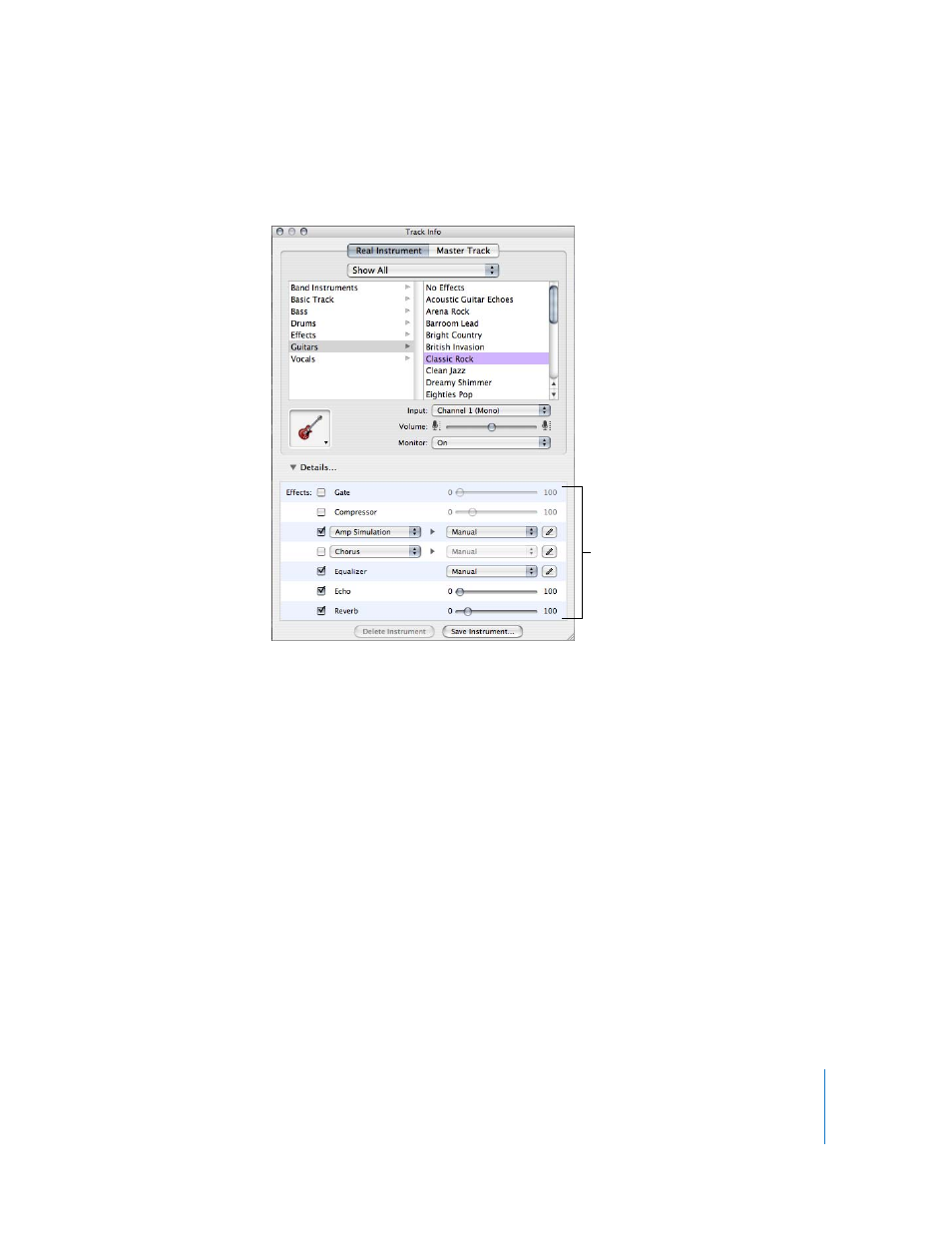
Click the Details triangle to reveal the track's effects settings.
3
Drag the sliders for the Gate, Compressor, Echo, and Reverb effects to adjust the
amount of each effect. Choose a new setting from the Equalizer pop-up menu to adjust
the equalization. If your song is playing, you hear the changes in real time.
4
Choose an effect from one of the Effect pop-up menus on the left, then choose an
effect setting for the effect from the Preset pop-up menu on the right.
Additional effects you can add include treble reduction, bass reduction, amp
simulation, chorus, flanging, phase shifting, and tremolo.
Use these controls to
add and adjust effects.