
Loading heavy sheets – Epson STYLUS 7900 User Manual
Page 76
76
76
|
Handling Paper and Other Media
Loading Heavy Sheets
Make sure you load paper in the portrait orientation (short edge first).
The only exception is paper that is more than 19 mil (0.5 mm) thick and
28.6 inches (728 mm) long, which should be loaded in landscape orientation
(Pro 9900 only).
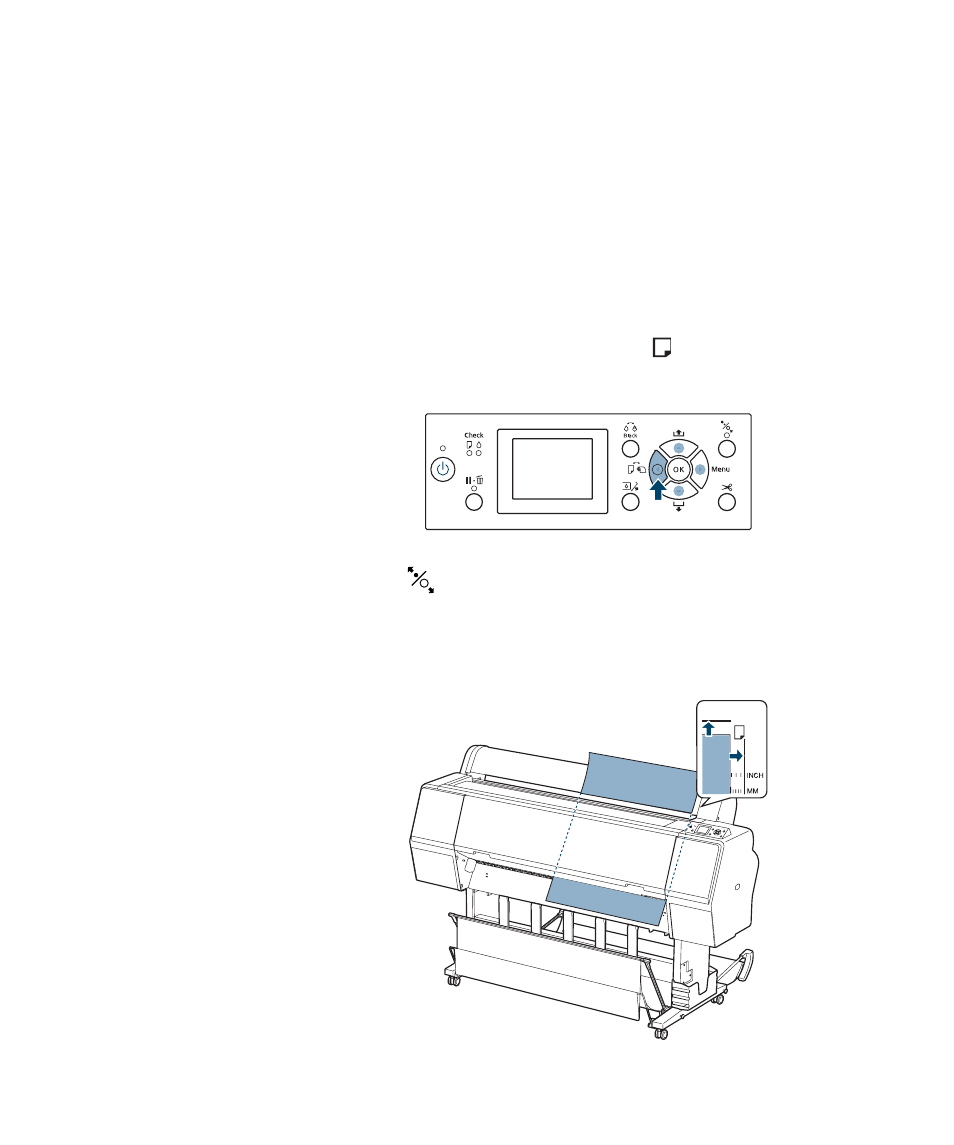
1. Make sure the printer is turned on and the roll paper cover is closed.
2. Press the l Paper Source button until the
Sheet icon appears on the
LCD display.
3. Press the
button.
4. Feed the sheet into the paper slot. Make sure the right and top edges of
the paper are straight and aligned with the horizontal and vertical lines
on the printer.
Note: You may need to
increase the suction by
pressing the
u
button.
This helps hold the paper
in place during loading
and printing.
- Stylus Pro 7800 (11 pages)
- Stylus Pro 4000 (49 pages)
- Stylus Photo R300 (2 pages)
- Stylus Pro 7000 (147 pages)
- AcuLaser C3000 (316 pages)
- Stylus Pro 7900 (24 pages)
- Stylus Pro 4450 (21 pages)
- 1000 (272 pages)
- T034120 (4 pages)
- T580300 (4 pages)
- 300 (91 pages)
- B 510DN (190 pages)
- B 510DN (218 pages)
- Stylus NX510 (8 pages)
- Stylus Photo RX580 (95 pages)
- T549300 (4 pages)
- B 500DN (168 pages)
- AculaserCX11NF (5 pages)
- 480SXU (24 pages)
- 4500 (317 pages)
- STYLUS RX500 (99 pages)
- 2100 (13 pages)
- Stylus NX215 (2 pages)
- T098320 (4 pages)
- T041020 (4 pages)
- R210 (8 pages)
- All-In-One Stylus Photo RX600 (164 pages)
- 777I (53 pages)
- T033120 (4 pages)
- Stylus CX7000F (8 pages)
- 60 (113 pages)
- T034220 (4 pages)
- WorkForce 40 Series (36 pages)
- T054220 (4 pages)
- Stylus CX3200 (11 pages)
- Stylus CX7800 (18 pages)
- T060220 (4 pages)
- 2500 (180 pages)
- AcuLaser CX11N (32 pages)
- AcuLaser CX11N (4 pages)
- 2000P (16 pages)
- T606600 (4 pages)
- Stylus CX6000 (18 pages)
- FS-4000DN (2 pages)
- MSDS T544700 (4 pages)